3D Workspace
Home
Assets
Affiliate Program
Sign up/Log in
?
Upgrade
DCC Bridge
3D Creation Made Simple
Text & Image to 3D Model in seconds
One-Click Texturing & Smart Detail Editing
Free Credits Monthly
Start Free
Anonymous1760515965
10-15 08:17
Model Name
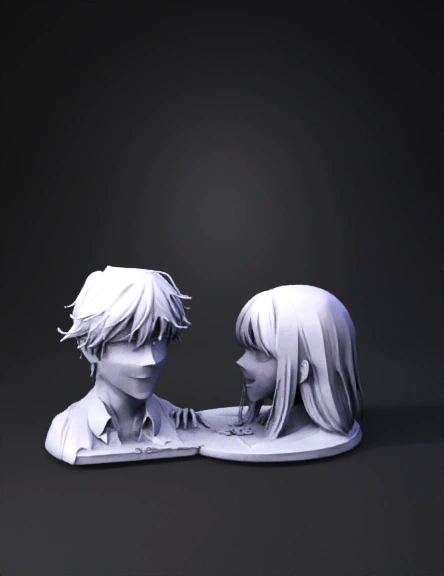
anime couple 3d model
Tags
character
animation
stylized
Input
Prompt
Certainly! To animate this image in Tripod, you would first need to import it. Once imported, you can then add animation keyframes to create movement. Here's how you might approach it, focusing on subtle animations to bring the scene to life: Character Movement: Minho (Left Character): You could add a very slight head tilt or a subtle blink animation. Perhaps a gentle raise of his left shoulder as he speaks. Right Character: A subtle nod, a gentle shift of her gaze, or a slight smile animation would be appropriate. A soft blink would also add realism. Background Elements: Light Rays: You could animate the golden light rays in the background to subtly shimmer or slowly move, giving the impression of light filtering through. Dust Particles: Adding very faint, slow-moving dust particles in the air, especially in the illuminated areas, can enhance the atmosphere. Facial Expressions (Subtle Changes): You could create very slight shifts in their eye direction or the corners of their mouths to emphasize the emotion of the dialogue "I couldn't have done it without you." Camera Movement: A very slow, almost imperceptible zoom in or a gentle pan across the characters could add a cinematic touch. Here's an example of how you might describe the animation steps in Tripod: "Firstly, upload the image 'Minho_Couldn't_Have_Done_It.png' to Tripod. For Character Animation: Minho: Select Minho's head layer. Add a keyframe at 0 seconds (start) for his head position. Add another keyframe at 2 seconds with a very slight tilt upwards, and then back to the original position at 4 seconds. Create separate layers or masks for his eyes and animate a gentle blink cycle over 5 seconds. Right Character: Select her head layer. Add a keyframe at 0 seconds. At 3 seconds, add a slight nod downwards, returning to the original position at 5 seconds. Animate her eyes with a subtle blink every 4-6 seconds. For Background Animation: Light Rays: Identify or create a layer for the light rays. Apply a 'glow' or 'flicker' effect with a low intensity and a slow speed to simulate shimmering light. Alternatively, mask out individual rays and animate their opacity to subtly wax and wane. Atmospheric Dust (Optional): If possible, use a particle generator in Tripod or create small, semi-transparent white dots on a separate layer. Animate these particles to slowly drift downwards or across the screen. Camera Animation: Apply a 'camera pan' effect. Set the starting position at 0 seconds. Over 10 seconds, set the end position for a very slow, subtle pan from left to right, focusing slightly on Minho at the start and then gently moving towards the right character." This will help bring your beautiful image to life!
Detailed Info
Related Models
Enter invite code
Enter invite code to get credits!