3D Workspace
Home
Assets
Affiliate Program
Sign up/Log in
?
Upgrade
DCC Bridge
Anonymous1761675345
11-17 01:03
Model Name
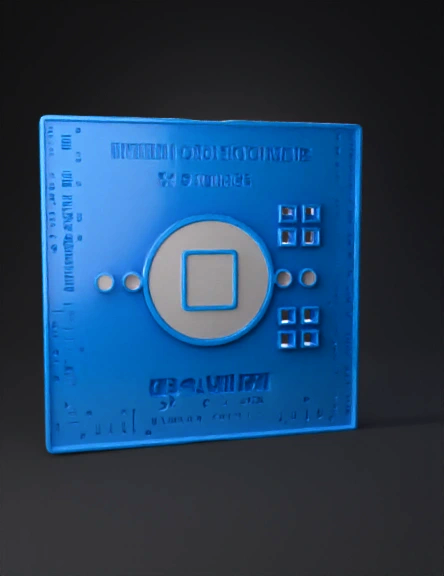
filament calibration model
Tags
3d printing
3d printing realistic
calibration
props
props 3d printing
props 3d printing realistic
props realistic
realistic
Prompt
I want to create a shape I can use to measure and calculate 3d printer filament shrinkage. Described as "ou can calibrate for filament shrinkage in OrcaSlicer using the built-in Shrinkage setting located directly within your filament profile.1This setting applies a percentage-based compensation to the X and Y dimensions of your model to counteract material shrinkage as it cools, which is common with materials like ABS, ASA, and Nylon.2Here is the step-by-step process.1. 🖨️ Print a Calibration ModelFirst, you need a test print with known, precise dimensions. A simple 100mm x 100mm x 10mm cube or a dedicated "dimensional accuracy" model is perfect.Model: Use a basic calibration cube. A 100mm model is often better than a 20mm one, as it makes any shrinkage easier to measure.Settings: Before you print, make sure all other compensations are turned off for this test.Go to Filament Settings > Filament and ensure Shrinkage is set to 100%.Go to Process > Quality > Precision and ensure X-Y hole compensation and X-Y contour compensation are both set to 0.3Print: Print the model using the filament you want to calibrate. Let it cool completely to room temperature before measuring.2. 📏 Measure Your PartUsing a good pair of digital calipers, measure the X and Y dimensions of your cooled print.Measure the same dimension that was 100mm in your design.Let's say your 100mm X-axis design printed at 99.6mm.Let's say your 100mm Y-axis design printed at 99.7mm.Note: This setting primarily affects X and Y dimensions.4 Z-axis accuracy is usually a different issue related to mechanical components or flow rate, not material shrinkage in the same way.53. 🧮 Calculate and Enter the Shrinkage ValueNow you'll use a simple formula to find the correct value for OrcaSlicer. The formula is:$$\text{Shrinkage Value (\%)} = \left( \frac{\text{Measured Dimension}}{\text{Designed Dimension}} \right) \times 100$$Using our example:X-Axis: (99.6mm / 100.0mm) * 100 = 99.6Y-Axis: (99.7mm / 100.0mm) * 100 = 99.7You can average these if they are close: (99.6 + 99.7) / 2 = 99.65.Now, enter this value into your filament profile:Go to the Filament Settings tab.Select the filament profile you are calibrating.On the Filament sub-tab, find the Shrinkage setting (it's often near the "Flow Ratio").Enter your calculated value: 99.65.By setting this to 99.65%, you are telling OrcaSlicer that this filament shrinks to 99.65% of its intended size. The slicer will automatically compensate by scaling the model up slightly (by a factor of 100 / 99.65) so that the final, shrunken part is dimensionally accurate.Key Distinction: Shrinkage vs. CompensationIt's important not to confuse the Shrinkage setting with the X-Y Compensation settings.✅ Shrinkage (in Filament Settings):Unit: Percentage (%)Use: Fixes overall dimensional inaccuracy due to the material's properties (e.g., a 100mm part prints at 99.6mm). It scales the entire part.❌ X-Y Contour/Hole Compensation (in Process Settings):Unit: Millimeters (mm)Use: Fixes small feature inaccuracy, often due to filament "bulge" on corners or holes printing small. It applies a fixed offset to contours, not a percentage scaling.For general part accuracy, always calibrate the "Shrinkage" setting first.This video provides a good overview of the many calibration tools available in OrcaSlicer, including those for dimensional accuracy.OrcaSlicer Calibration Guide" Can you generate a model I can use to measure shrinkage and x,y correction? I want the model to have multiple measurements. The model thickness should be no more than 3-5mm.
Detailed Info
Related Models
Enter invite code
Enter invite code to get credits!
 Anonymous1761675345


 Anonymous1761675345